

The essential guide to workflow diagrams
A workflow is a repeatable sequence of tasks that moves work from start to finish. This guide explains what workflow diagrams are, how to build one from scratch or redesign an existing one, and how to track whether your process is actually delivering results.
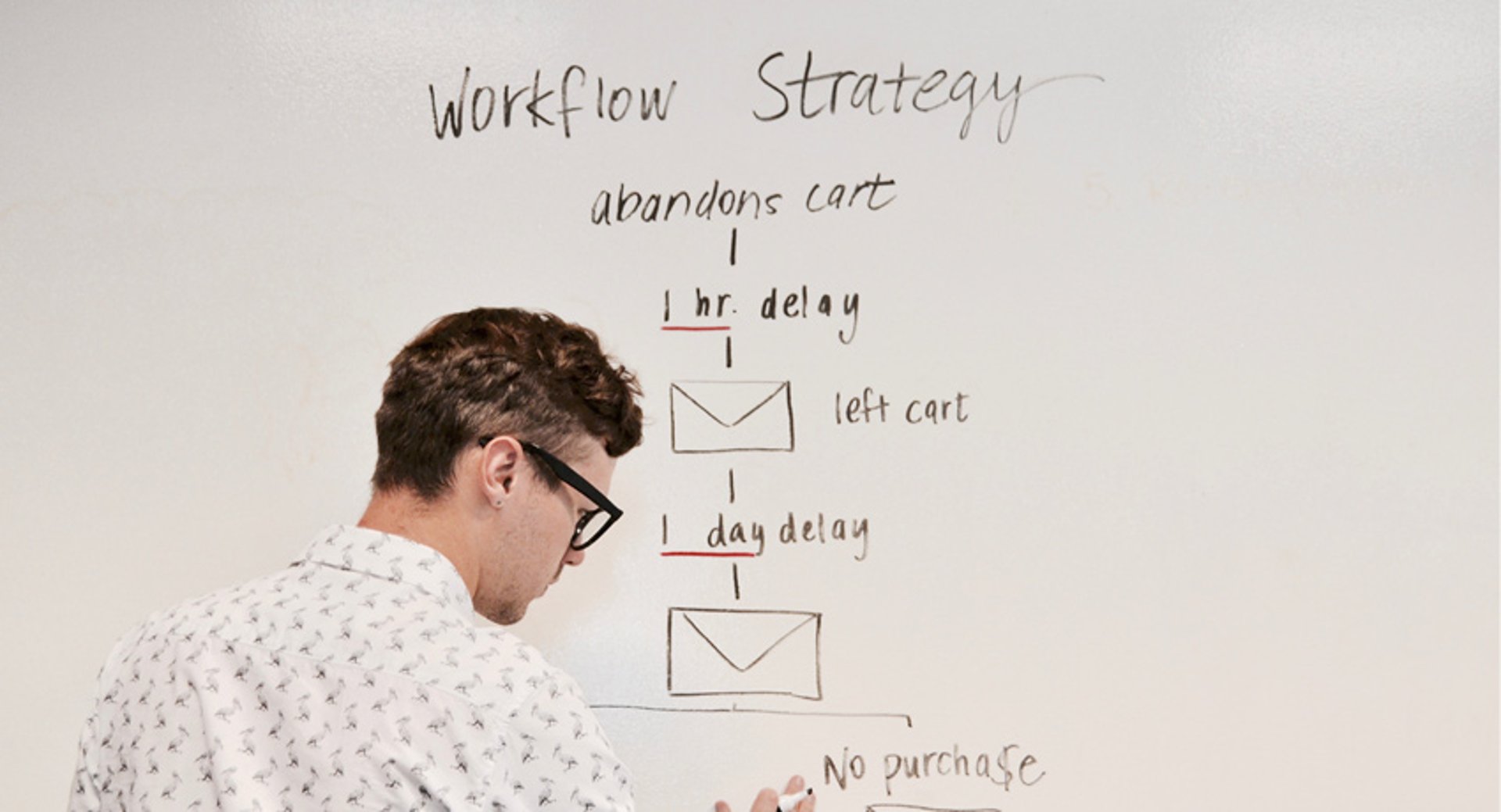
What is a workflow?
A workflow is how you get work done. It is a repeatable sequence of tasks that moves data or work from one step to the next until a goal is reached.
The keyword is repeatable. A workflow is not a one-off task or a sprawling project. It is something your team does regularly, in a defined order, with a clear outcome at the end.
From undone to done, and raw to processed
According to Kissflow, if data is not moving, you do not have a workflow. Anytime data passes between people or systems, a workflow exists. That applies to every business, in every industry.
One step further
A workflow diagram gives that sequence a visual form. It maps each step from start to finish using symbols and shapes, and shows who is responsible at each point. When your team can see the full picture, roles become clearer, handoffs become smoother, and departments stop working at cross-purposes.
A little history
Does the name Gantt ring a bell? The workflow diagram traces back to the late 1880s, found in a railway engineering journal. Frederick Winslow Taylor, a champion of scientific management, and Henry Gantt, a mechanical engineer and management consultant, were among the first to study how labour could be rationally organized. With massive workforces and heavy machinery available during the industrial revolution, business owners needed a way to harness that scale and actually get things done.
As the workplace grew more tech-savvy with the arrival of the typewriter and the copier, workflow research deepened and knowledge spread. Today, workflows are everywhere and straightforward to create.
Create custom dashboards for you and your team.
Get started with KlipsThe workflow process
There are many approaches to building a workflow diagram, from fully manual to fully automated. Here is a practical overview of both paths.
Already using workflow diagrams?
When redesigning an existing workflow, start with a thorough workflow analysis. This surfaces weaknesses you may have stopped noticing: redundant tasks, bottlenecks, inefficient handoffs, and steps that exist out of habit rather than necessity.
Keep two versions in mind throughout: the "as is" process (how things work now) and the "to be" process (how you want them to work). Every decision you make should be answerable with a clear why.
Starting from scratch
1. Decide whose point of view you are mapping: the business or the customer.
2. Sketch your current process at a high level. Use a whiteboard, sticky notes, or whatever helps you think. Capture the key steps that repeat regularly in your organization. If you are mapping a team workflow, focus on your team's key steps.
3. Once you have a rough draft, gather details from the people involved in each step. Ask them:
What is your overall goal?
What marks the beginning and end of this process?
What tasks are involved at each step, and who owns them?
What happens next?
When have you deviated from the set process, and why?
4. With that input in hand, run your workflow analysis. Three things to focus on:
Group your tasks: Rank tasks by importance using labels like vital, useful, not necessary, and remove. You can also organize by department or individual.
Look for weaknesses: Redundancies, bottlenecks, double data entry, and multi-step delays are the most common culprits.
Think ahead: Check that your workflow supports where the team or company is headed, not just where it is today.

5. Now you are ready to build.
6. Decide whether you are designing a manual workflow or an automated workflow.
In a manual workflow, someone on your team is responsible for moving each piece of work from one step to the next. That means emails, approvals, reminders, and updating documents by hand. It works, but it puts the burden of coordination on people.
In an automated workflow, software handles the handoffs. When someone completes a task, the system moves the work forward, sends notifications, tracks deadlines, and keeps everything visible. Your team spends less time chasing status updates and more time doing the actual work. The payoff is not just efficiency: it is confidence that nothing is slipping through the cracks.
7. Choose how you want to display your workflow diagram. According to Lucidchart, there are five main display types:
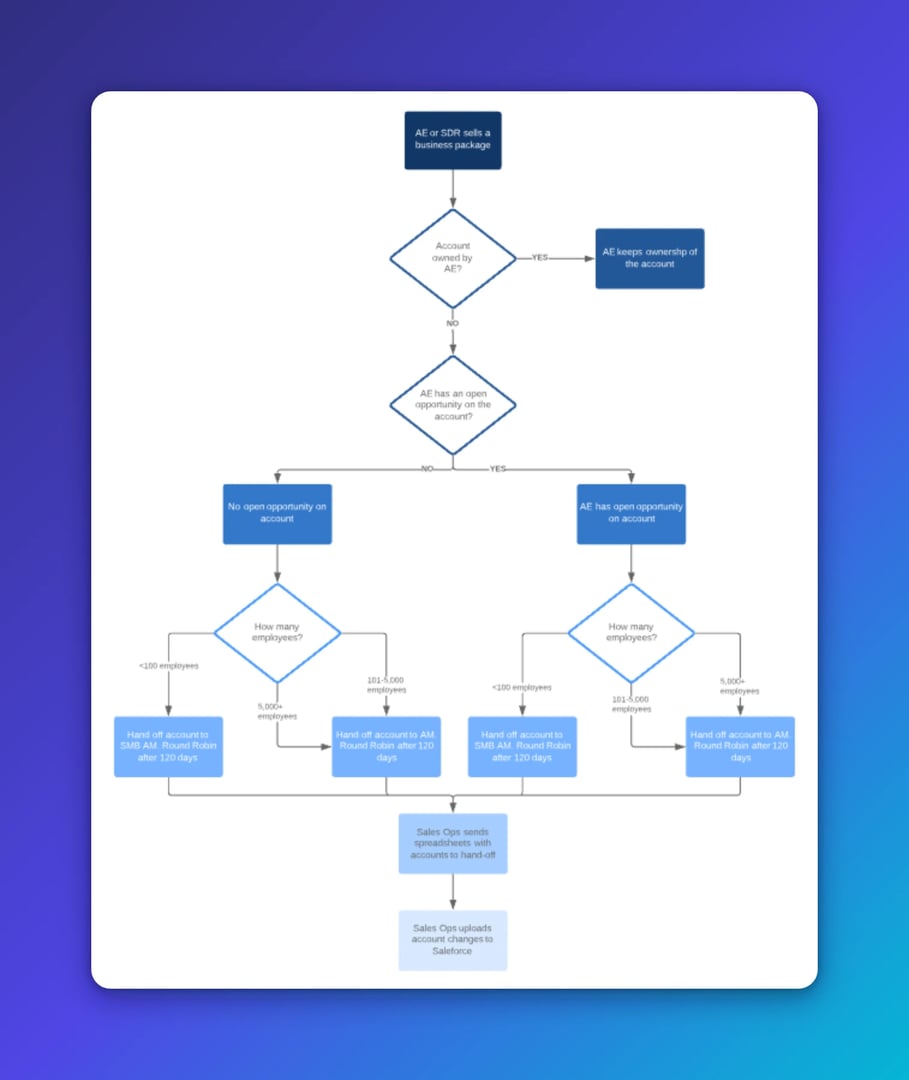
- ANSI flowchart: The original standard for workflows. Uses symbols from the American National Standards Institute to give everyone a common language for describing steps in a sequence.
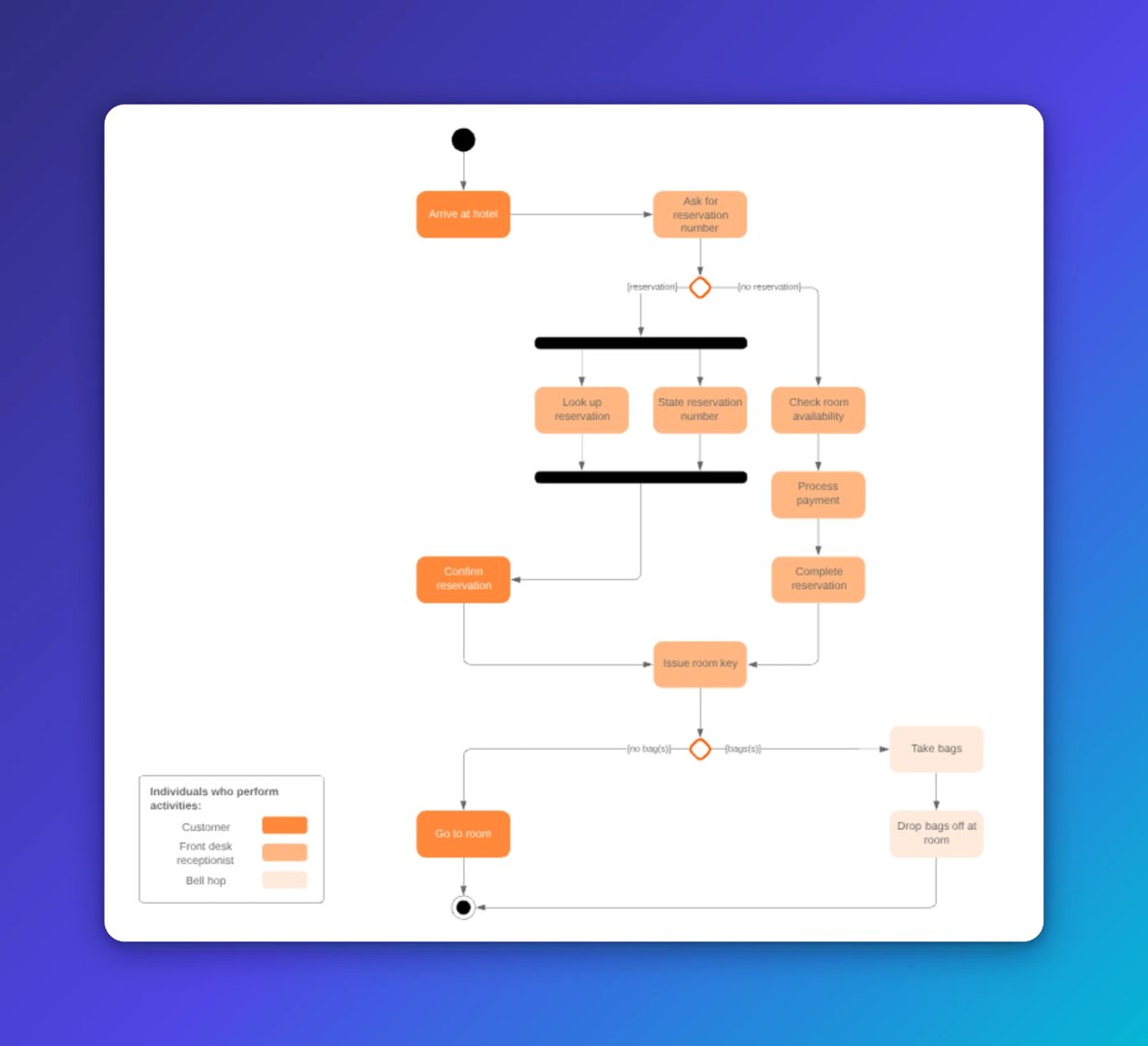
- UML Activity: Uses Unified Modeling Language to graphically represent the order of steps and the flow of control between them.
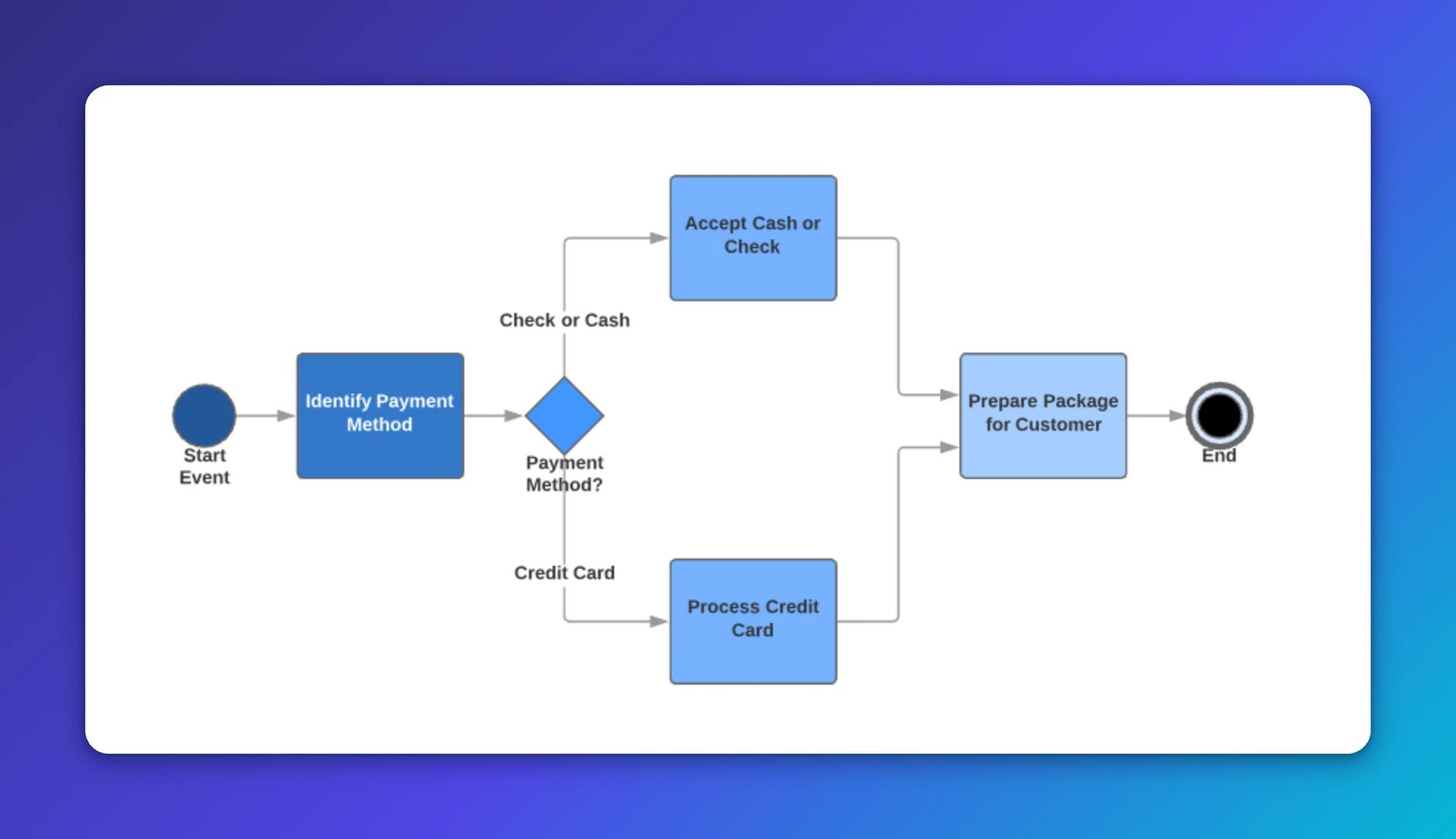
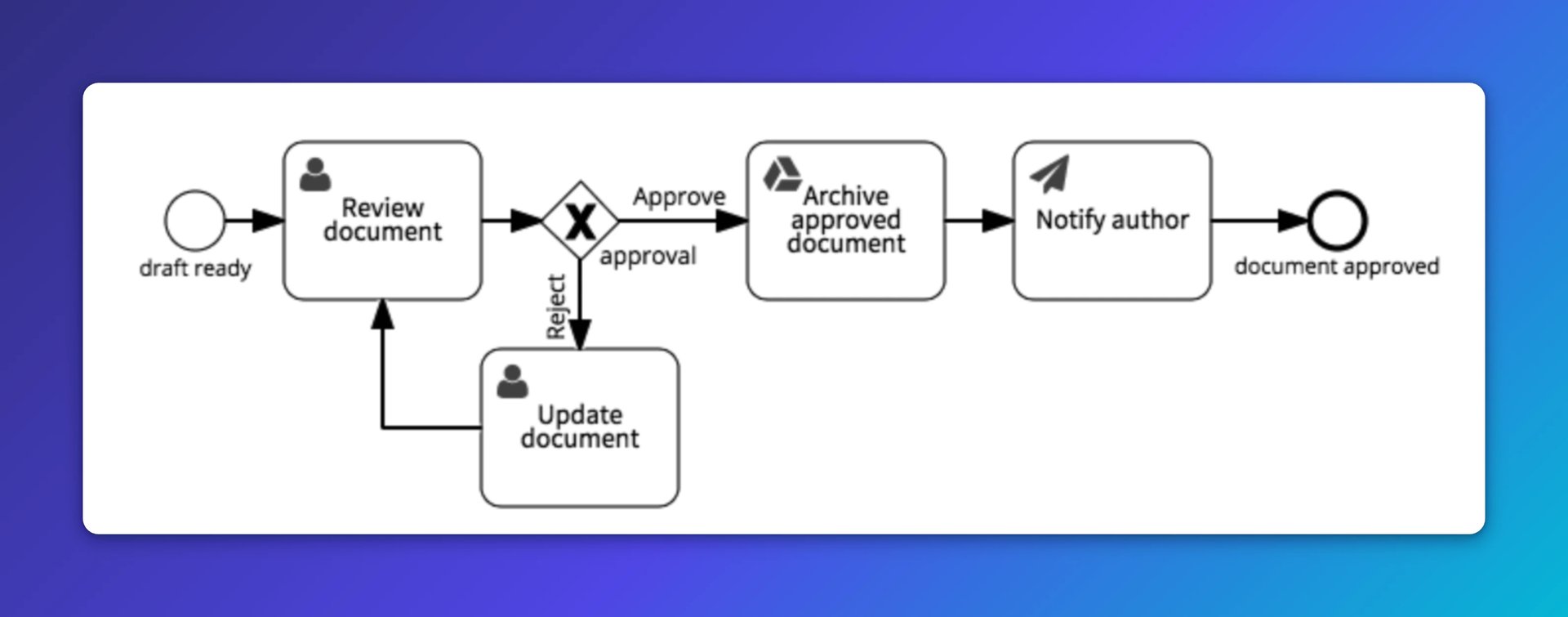
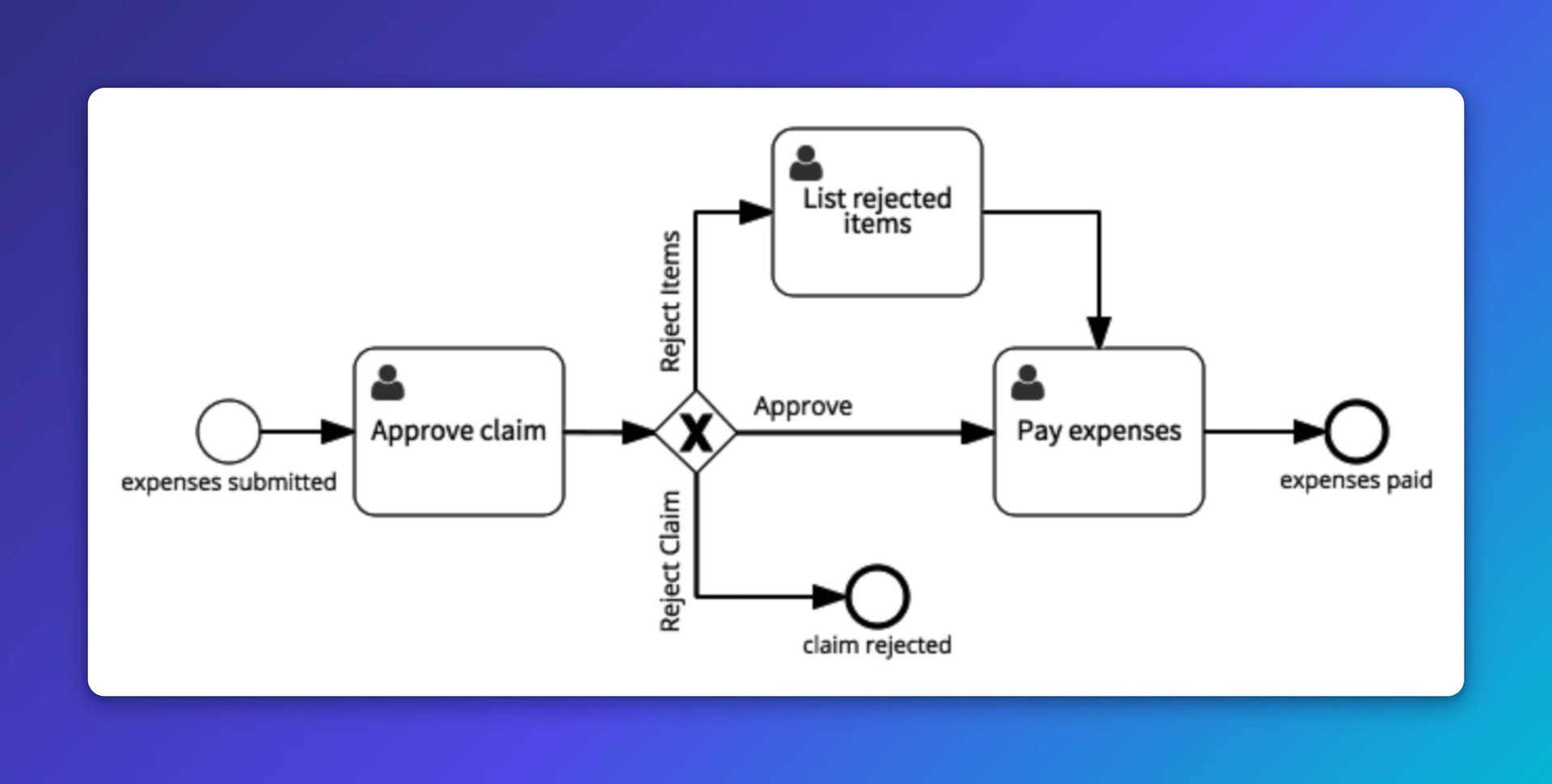
- BPMN: Business Process Modeling Notation uses a flowchart technique similar to UML. It focuses on internal business processes and information rather than outputs.
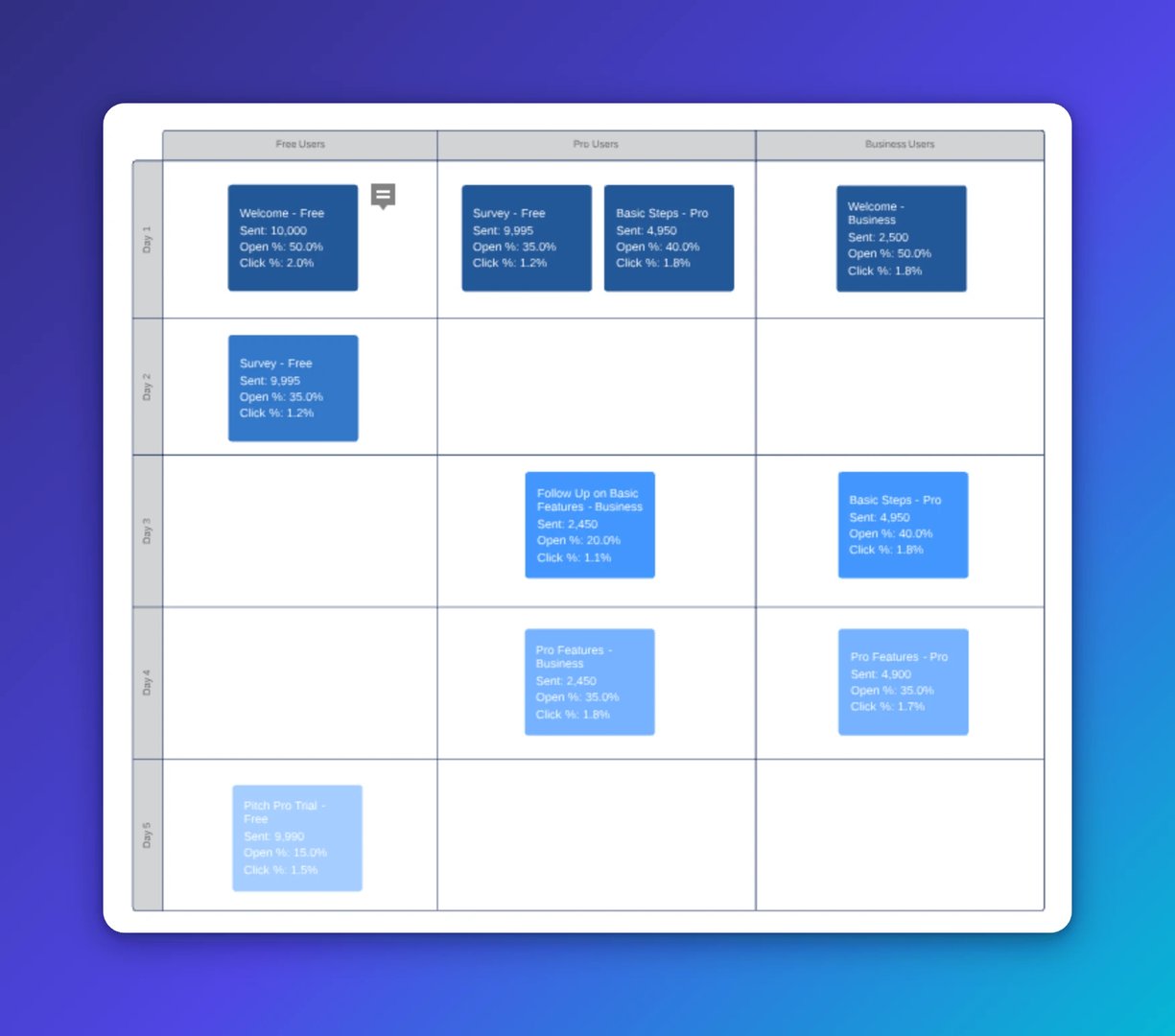
- Swimlane: Separates each unit within an organization to emphasize interaction and surface potential inefficiencies at a glance.
- SIPOC: Supplier-Input-Process-Output-Customer. Shows clearly who creates and receives the data, and maps the high-level process in between.
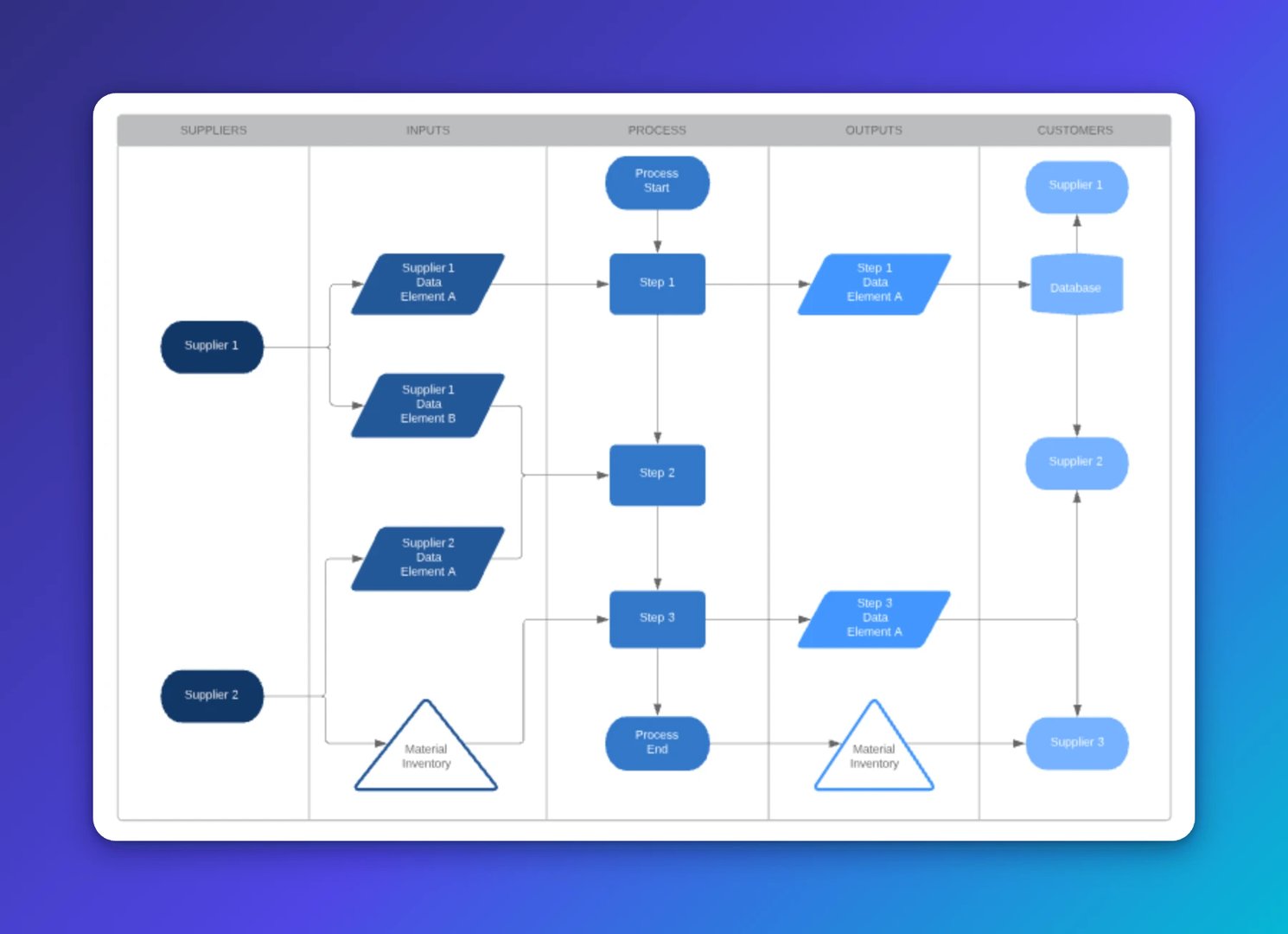
8. Make it your own. Add colour and use standard shapes to keep the diagram readable:
Oval: Start and finish points of the sequence.
Rectangle: Instructions or actions.
Diamond: A yes/no decision that splits the workflow into two paths.
Circle: A connector between tasks, linked by arrows.
Arrow: Points to the next step in the sequence.
9. Share it and use it. A workflow diagram only works if the people in it know it exists. Share it with your team, walk through it together, and make it the default reference point for how the work gets done.
Workflow diagram examples
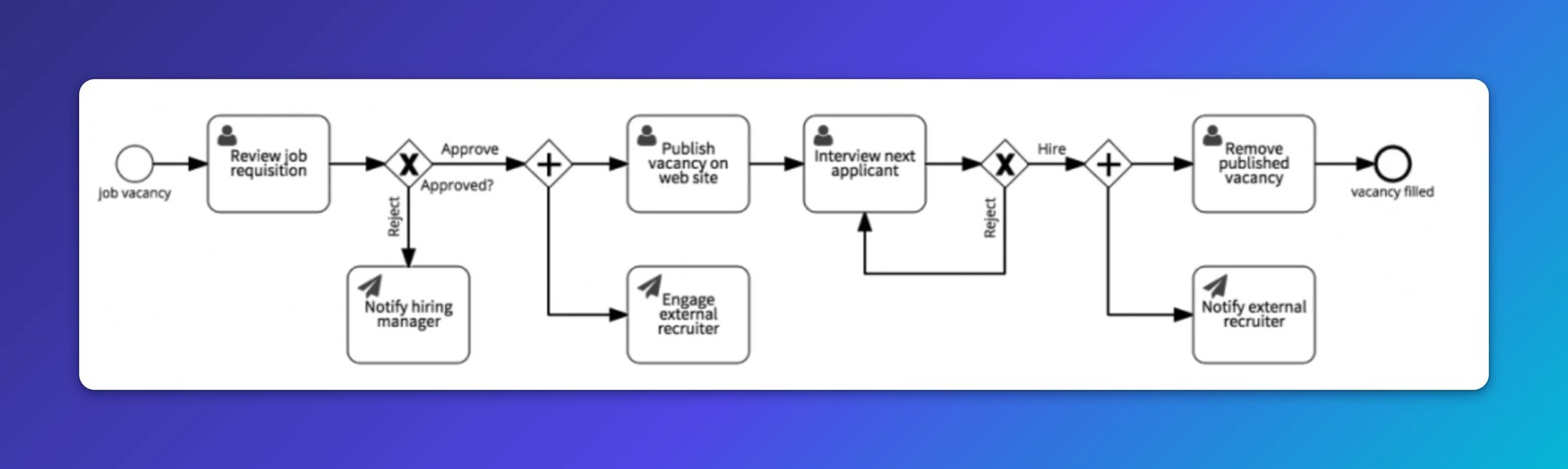
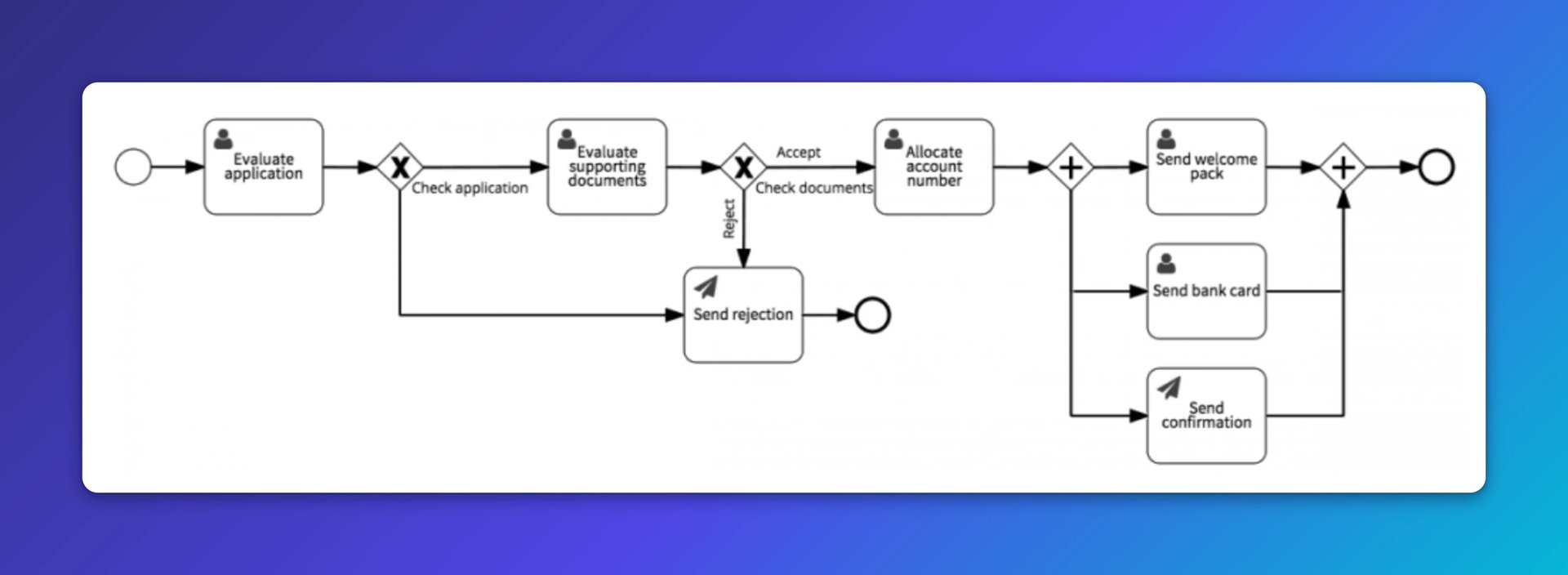
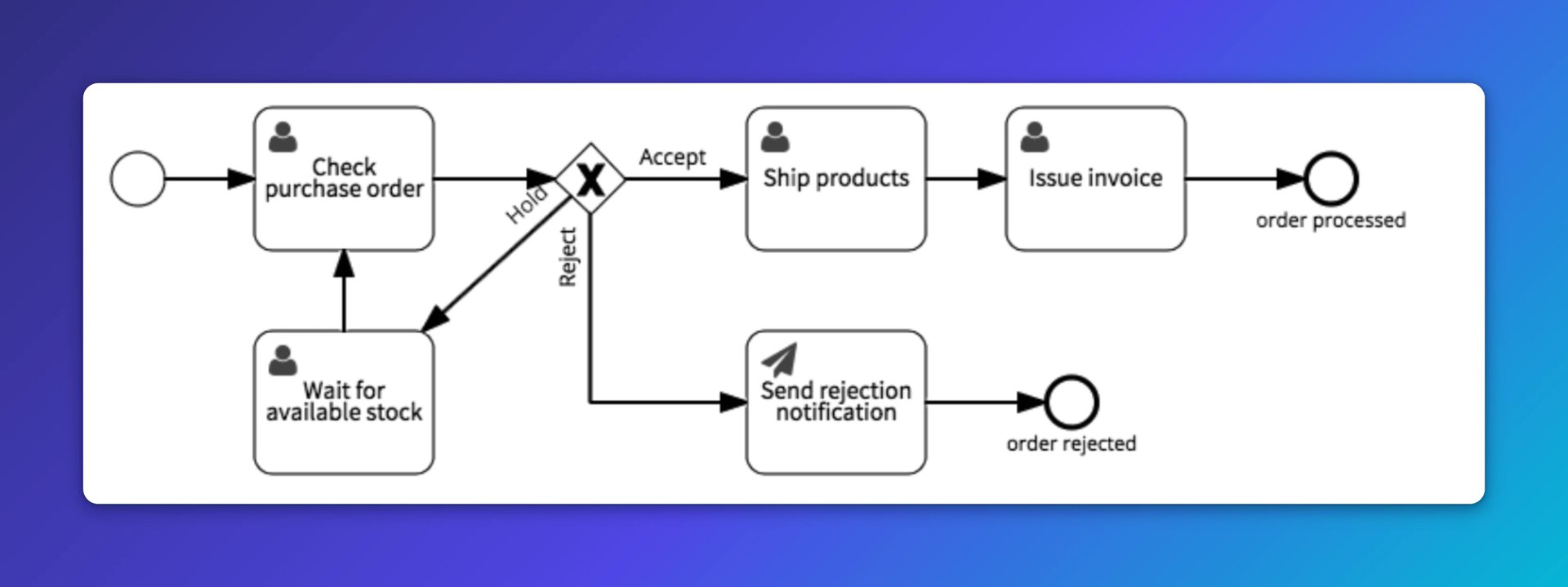
Need a starting point? Here are five common workflow diagrams from Signavio.
Approve document
Approve expense claim
Fill job vacancy
Open new customer account
Fulfill purchase order
What to do once your workflow is mapped
A clear workflow diagram tells you how work moves. The next question is whether it is moving well. Check out these Lifehacker workflow hacks for getting your most important tasks done faster. A few worth calling out:
Check email at set times. Constant inbox monitoring is one of the fastest ways to lose a productive day.
Keep a to-do list. The format matters less than the habit. Checking things off keeps momentum going.
Stop talking yourself into feeling busier than you are. Focusing on how overwhelmed you feel rarely helps you get more done.
Try context-switching on your terms. Dedicate specific days to specific types of work instead of jumping between tasks all day.
Create custom dashboards for you and your team.
Get started with KlipsKeep your team on track
Knowing your workflow is one thing. Knowing whether it is delivering results is another. Tracking performance metrics is essential to understanding whether your process is working. With Klips dashboard reports, you get a real-time view of how your team is performing, without waiting for someone to pull a number or paste it into a spreadsheet. Connect your data sources, build once, and always know where things stand.
Published 2026-08-21
More in How To

Klipfolio Partner How-To #1: Duplicating dashboards across client accounts

Klipfolio Partner How-To #2: Company Properties can simplify client set-up

The ultimate guide to SaaS KPIs and metrics
The Ultimate Klipfolio Cheat Sheet
The 5 project management methods your team should already be using
The Basics of KPI Management
Most recent
- AUG 11Beyond simple sign-ups: how True Trials and Activation predict growth
- JUL 7Why business leaders miss important trends in their dashboards
- JUN 19The best chart for the job: Visualizing data for non-technical users
- JUN 95 tips to understand (and organize) your restaurant data
- MAY 26Think in Horizons, Not Seconds
- MAY 2010 Cloud BI Dashboard Tools for Small Businesses in 2026