

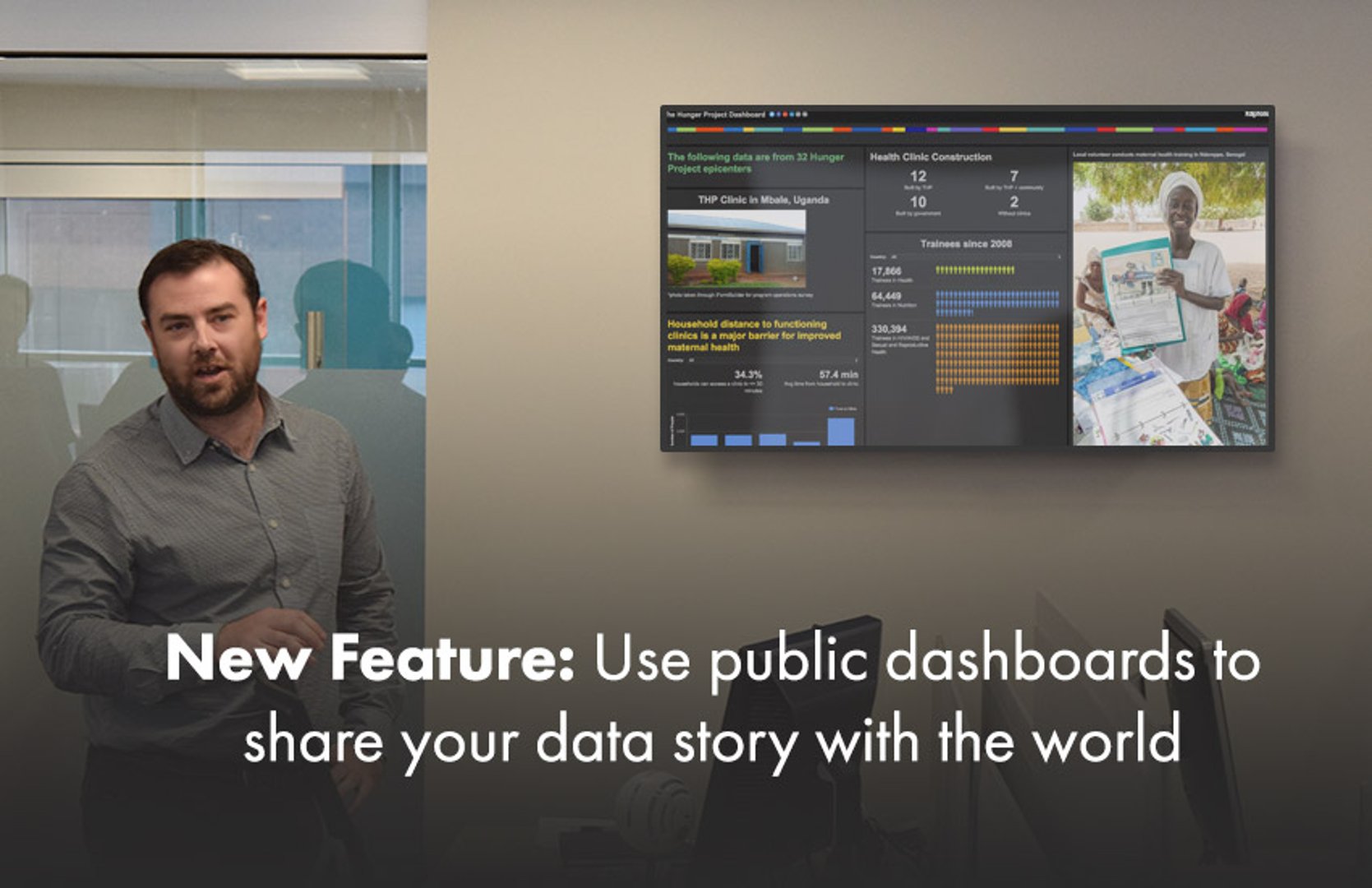
New Feature: Use public dashboards to share your data story with the world
Public dashboard links have arrived! We've pulled the beta tag off this feature and have made it accessible to all Klipfolio customers. This exciting feature opens the doors to a ton of dashboard possibilities.
NOTE: This feature has since changed. Check out the new Published Link documentation to learn more!
--
Public dashboard links have arrived! We've pulled the beta tag off this feature and have made it accessible to all Klipfolio customers. This exciting feature opens the doors to a ton of dashboard possibilities. Here's what you need to know about this feature:
- Create any number of dashboards for the team at no additional cost
- Set up access rights for any number of colleagues
- Easily send out emailed reports from the dashboard to any colleague, client or partner even if they are not a Klipfolio user
Oh, and did we mention this feature is completely, 100% FREE for all customers? We thought you'd like that ;)
Public dashboard showcase
Dashboards can be an effective tool for sharing a message with a wide audience.
Sometimes, the dashboard conveys a message that is poignant and powerful, like the Hunger Project's Maternal Health Dashboard.

Other times, the dashboard captures the excitement and electric energy of a national election, as Nanos Research did in its Canadian Election poll tracking dashboard.
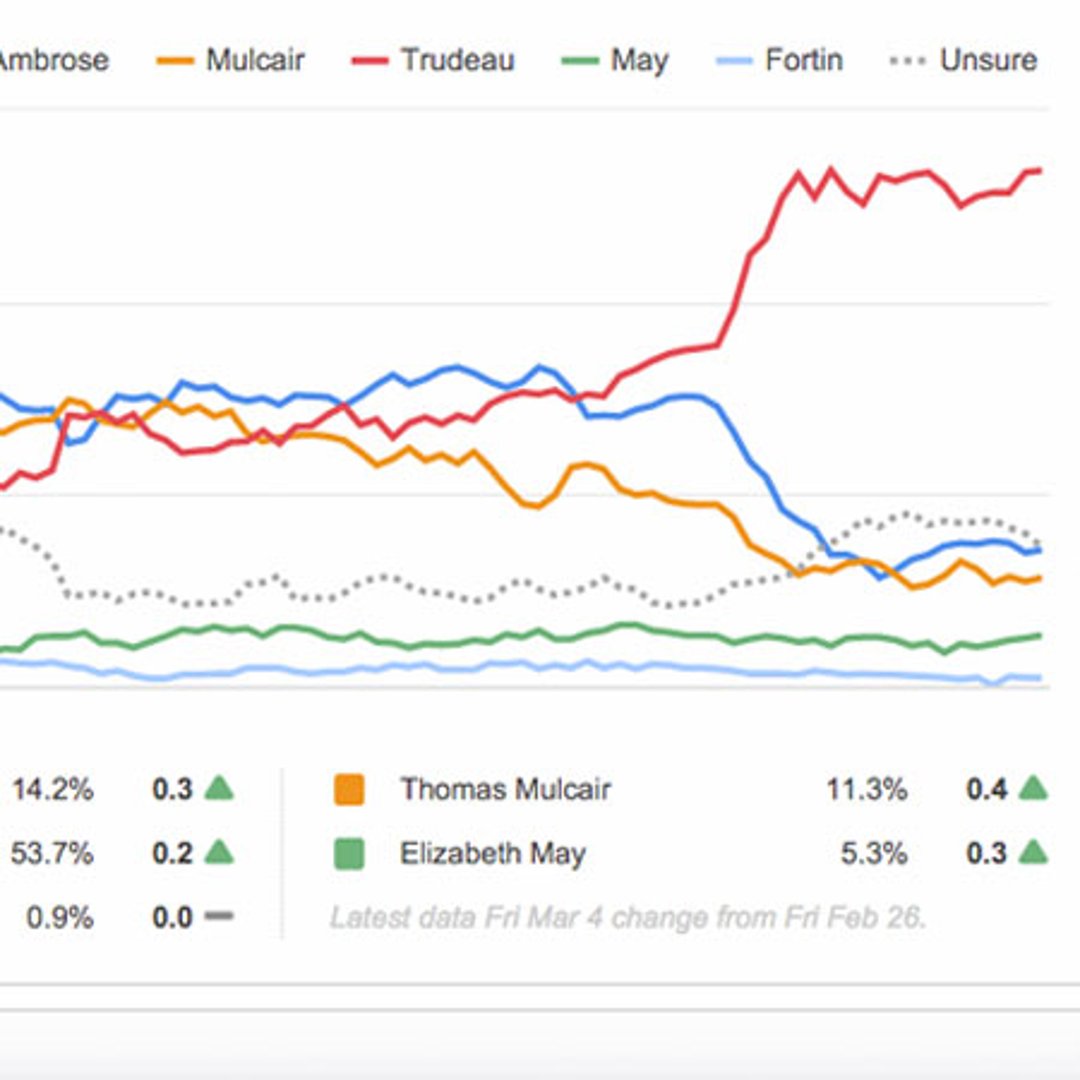
Check out our public dashboard showcase to learn more
How does the public dashboards feature work?
Public dashboard links are a free way for you to share dashboards with a larger, public audience. Public dashboards can accommodate up to 1000 viewers at one time. It's important that Klipfolio customers know that public links are indexed by search engines, and can be found be folks searching for related topics.
How do I make a dashboard public?
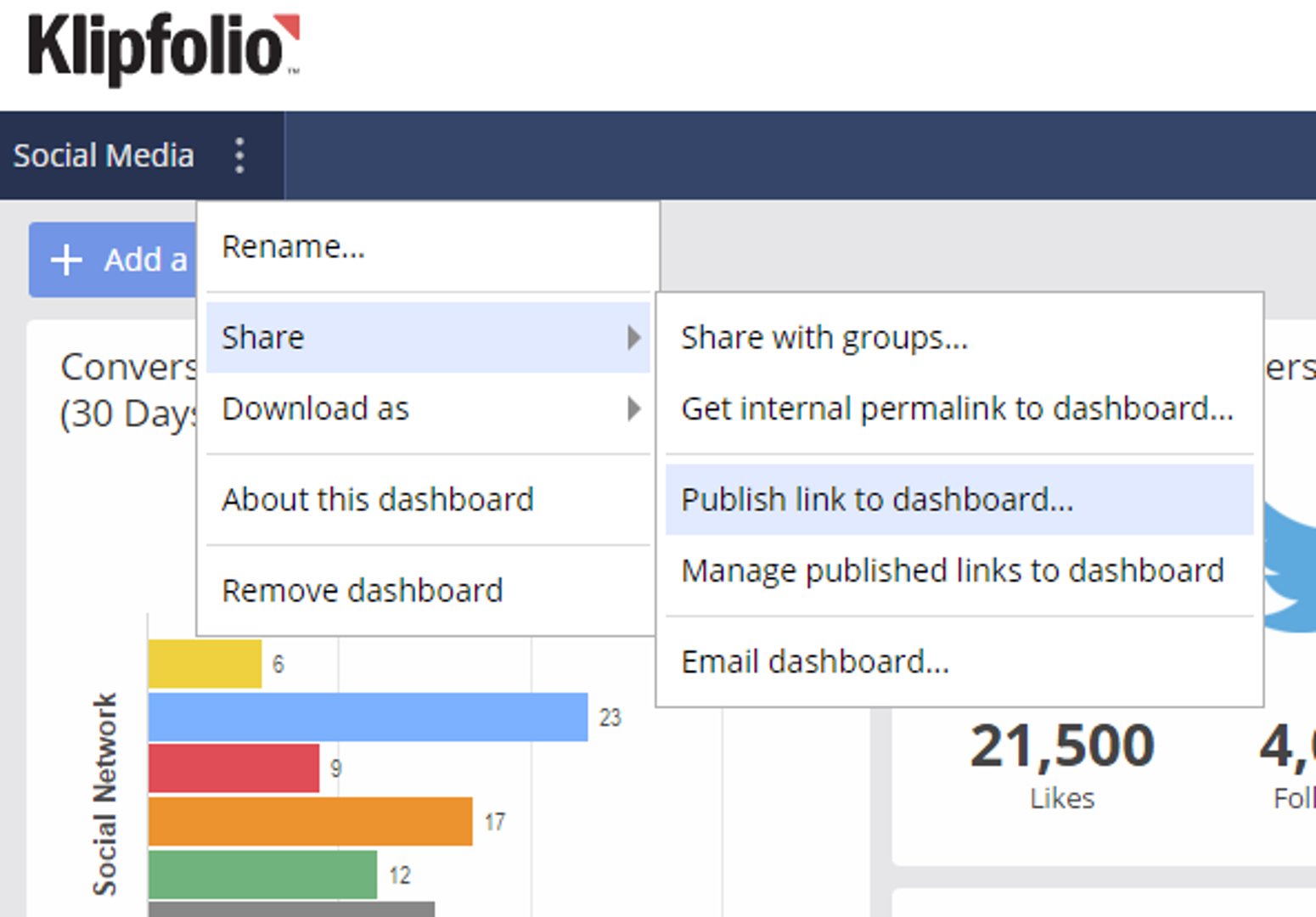
- Go the dashboard that you want to publish
- Select the gear icon on the dashboard
- Select Share, then Publish link to dashboard from the menu
- In the Publish link to Dashboard screen, click the Public Dashboard option in the visibility settings
- In the Dashboard Name, enter the name you want to use for the dashboard
- Select either the Light or Dark theme
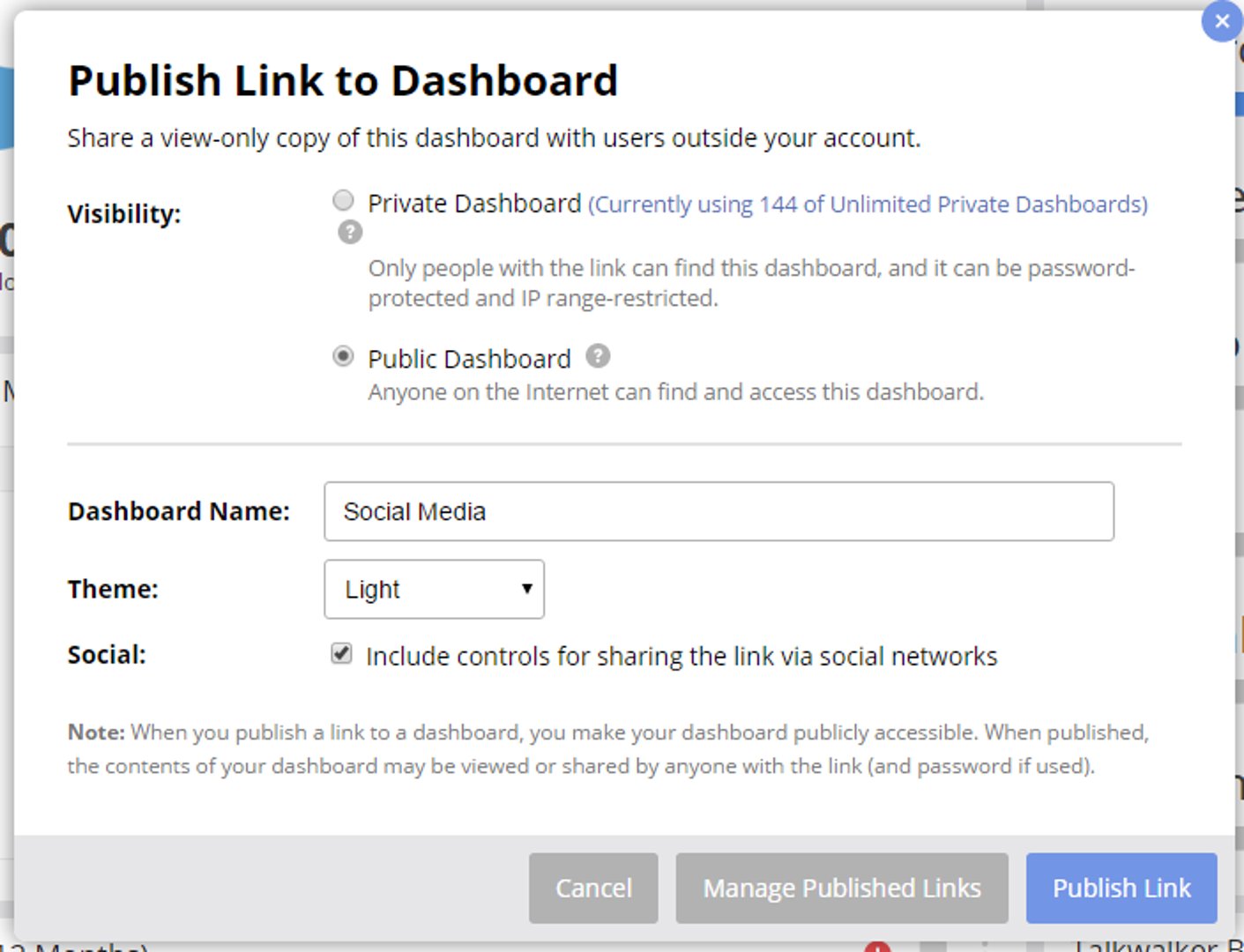
- Click Publish Link when you’re done. The Link Published screen with the shareable link will appear. Copy this link in order to share. (You can always find this link again by managing published links to this Dashboard or from the Usage Dashboard in your account settings.)
Create custom dashboards for you and your team.
Get started with KlipsNot sure where to start?
The Public Dashboard showcase is just a sample of what our customers have built. You can also check out our Live Dashboards section to see dashboards by industry, by department, by service, and by topic.
Published 2026-03-24
More in Features
Beyond simple sign-ups: how True Trials and Activation predict growth

Why business leaders miss important trends in their dashboards
The best chart for the job: Visualizing data for non-technical users

5 tips to understand (and organize) your restaurant data

Think in Horizons, Not Seconds
10 Cloud BI Dashboard Tools for Small Businesses in 2026
Most recent
- AUG 11Beyond simple sign-ups: how True Trials and Activation predict growth
- JUL 7Why business leaders miss important trends in their dashboards
- JUN 19The best chart for the job: Visualizing data for non-technical users
- JUN 95 tips to understand (and organize) your restaurant data
- MAY 26Think in Horizons, Not Seconds
- MAY 2010 Cloud BI Dashboard Tools for Small Businesses in 2026