

How to use lifecycle stages and lead status in HubSpot
Lifecycle stages and lead status look similar in HubSpot but do different jobs. Lifecycle stages track a contact's full journey from first touch to closed customer. Lead status signals where a contact sits during the marketing-to-sales handoff. This post explains the difference, shows how both properties work in practice, and gives you a framework for setting them up in your HubSpot instance.

If you're new to HubSpot or building out your marketing operations process, you've likely come across two terms that seem similar but do different jobs: lifecycle stages and lead status. Knowing how each one works, and how they work together, saves your team from dropped leads, missed follow-ups, and the kind of confusion that costs real pipeline.
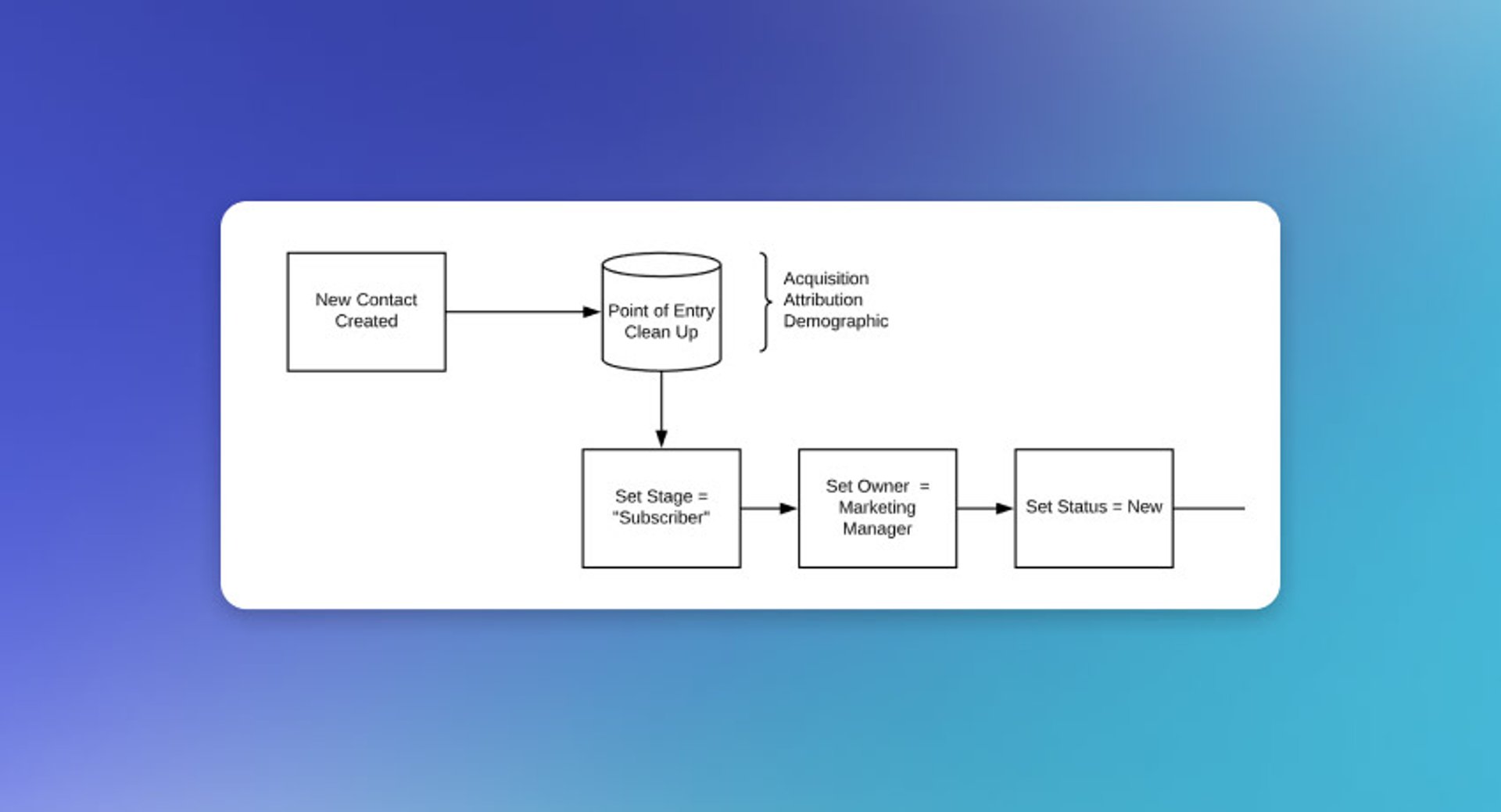
Lifecycle stages and lead status are designed to be used together. Changing one property can trigger a change in the other. This post explains the difference, shows you how both properties work in practice, and gives you a framework for setting them up in your HubSpot instance.
For a deeper look at the setup side, see this post on deploying lifecycle stages in HubSpot.
Lifecycle stages vs lead status: what's the difference?
Lifecycle stages track a contact's full journey from first touch to closed customer. Lead status signals where a contact sits during the handoff between marketing and sales.
Here's a quick way to hold both in your head:
- Lifecycle stage answers: Where is this contact in the overall funnel?
- Lead status answers: What is sales doing with this contact right now?
A contact reaches Marketing Qualified Lead (MQL) in their lifecycle stage. Their lead status is set to "Open," meaning sales can now act on them. From there, the two properties work together:
- Sales updates lead status to "Attempting to Contact" to signal they're following up
- That update triggers a workflow that advances the lifecycle stage to Sales Qualified Lead (SQL)
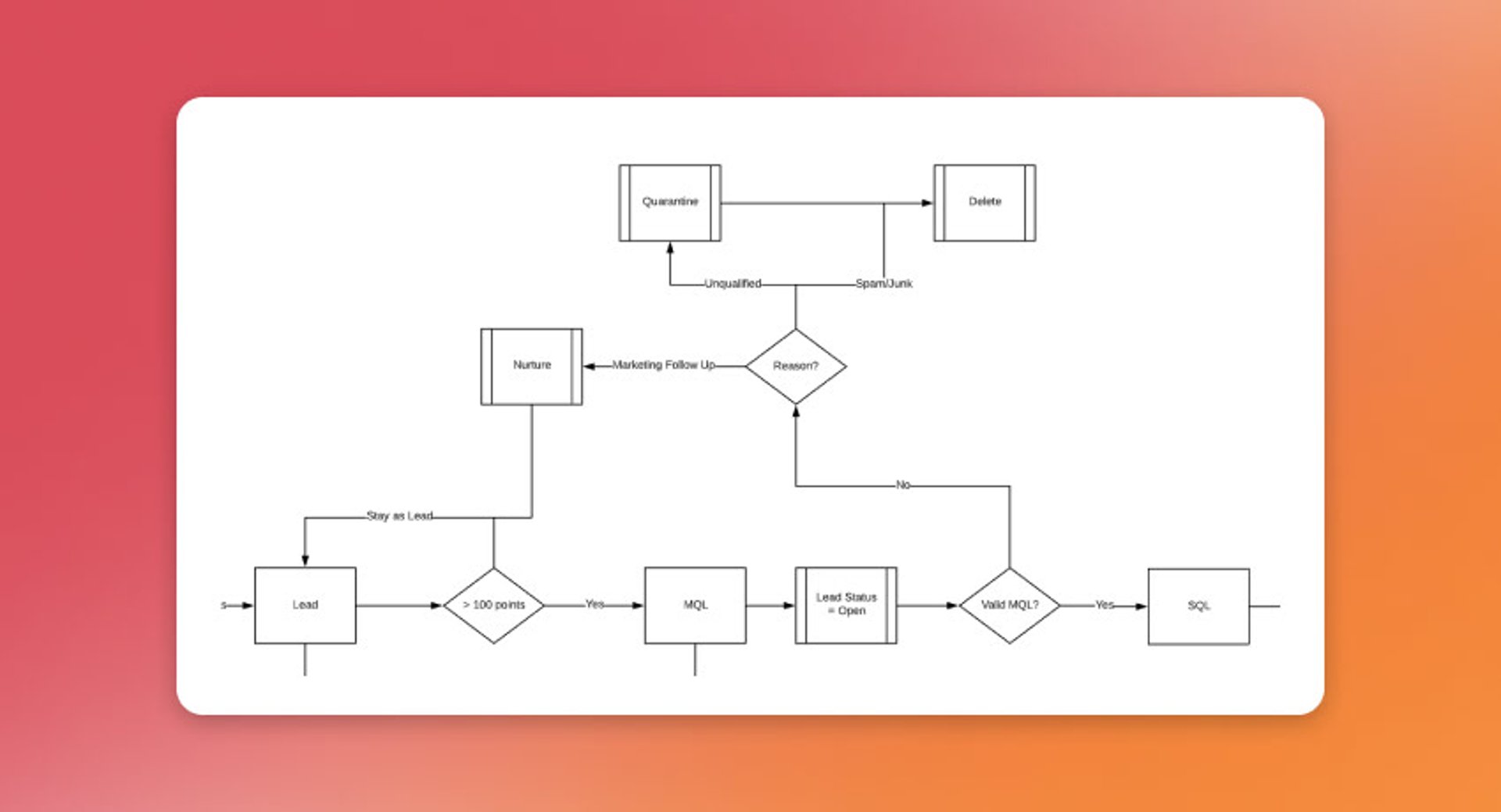
This handoff matters for three reasons.
First, it enforces accountability between sales and marketing. Most teams operate with some kind of SLA: marketing commits to a volume of MQLs, sales commits to a follow-up window. Lead status gives sales a fast, visible way to accept a lead and confirm the handoff happened.
Second, it supports pre-qualification before a deal is opened. "Attempting to Contact" might shift to "Connected" once a prospect replies, even if BANT hasn't been established. Or it might shift to "Unqualified" if the prospect signals no interest. Those distinctions help sales prioritize outreach to contacts who are actually engaged.
Third, it usually requires a human action, which makes it reliable for routing. A "Bad Timing" status can automatically enrol a contact in a 90-day nurture sequence or create a task to follow up later. Because a person set that status, you can trust the signal.
Defining lifecycle stages and lead status
The tables below show how you might define each property and what criteria drive transitions. These are examples: your definitions should reflect how your team actually sells.
Lifecycle stage definitions
As a contact moves through the lifecycle, communication shifts from one-to-many (marketing) to one-to-one (sales). The criteria column shows what typically triggers each transition.
An example of lifecycle stage definitions
| Stage | Definition | Criteria | Communication owner |
|---|---|---|---|
| Subscriber | Known contact | Has email address = True | Marketing |
| Lead | Engaged contact | Score between 20–99 or filled out high-intent form | Marketing |
| MQL | Marketing believes contact is ready for sales | Score > 100 | Marketing + Sales |
| SQL | Sales believes contact is appropriate for outreach | Lead Status = Attempting to Contact | Sales |
| Opportunity | Sales can forecast a closing probability | Has associated deal = True | Sales |
| Customer | Contact has made a purchase | Pipeline = Closed Won | Sales |
| Evangelist | Contact has completed a testimonial | Manually flagged by account manager | Sales |
Create custom dashboards for you and your team.
Get started with KlipsLead status definitions
Lead status has more manual touchpoints than lifecycle stage. The criteria column shows both workflow-driven and manual transitions.
An example of lead status definitions
| Status | Definition | Criteria |
|---|---|---|
| New | Assigned to all new contacts | Create date is known |
| Open | Contact is an MQL and ready for sales | Lifecycle Stage = MQL |
| Attempting to Contact | Sales has accepted the lead and is reaching out | Lifecycle Stage = MQL, Lead Status = Attempting to Contact |
| Connected | Contact has responded to sales | Manual action |
| In Progress | Active, productive conversation underway | Manual action |
| Bad Timing | Contact has flagged timing as the barrier | Manual action |
| Open Deal | Contact has an associated deal | Associated opportunity = True |
| Customer | Contact is a paying customer | Revenue = Known |
| Unqualified | Contact flagged for removal | Manual action |
How lifecycle stages and lead status work together
At a macro level, you need a clear transition point for each stage: how does a Lead become an MQL? How does an MQL become an SQL? How does an Opportunity become a Customer? Each transition needs a mechanism.
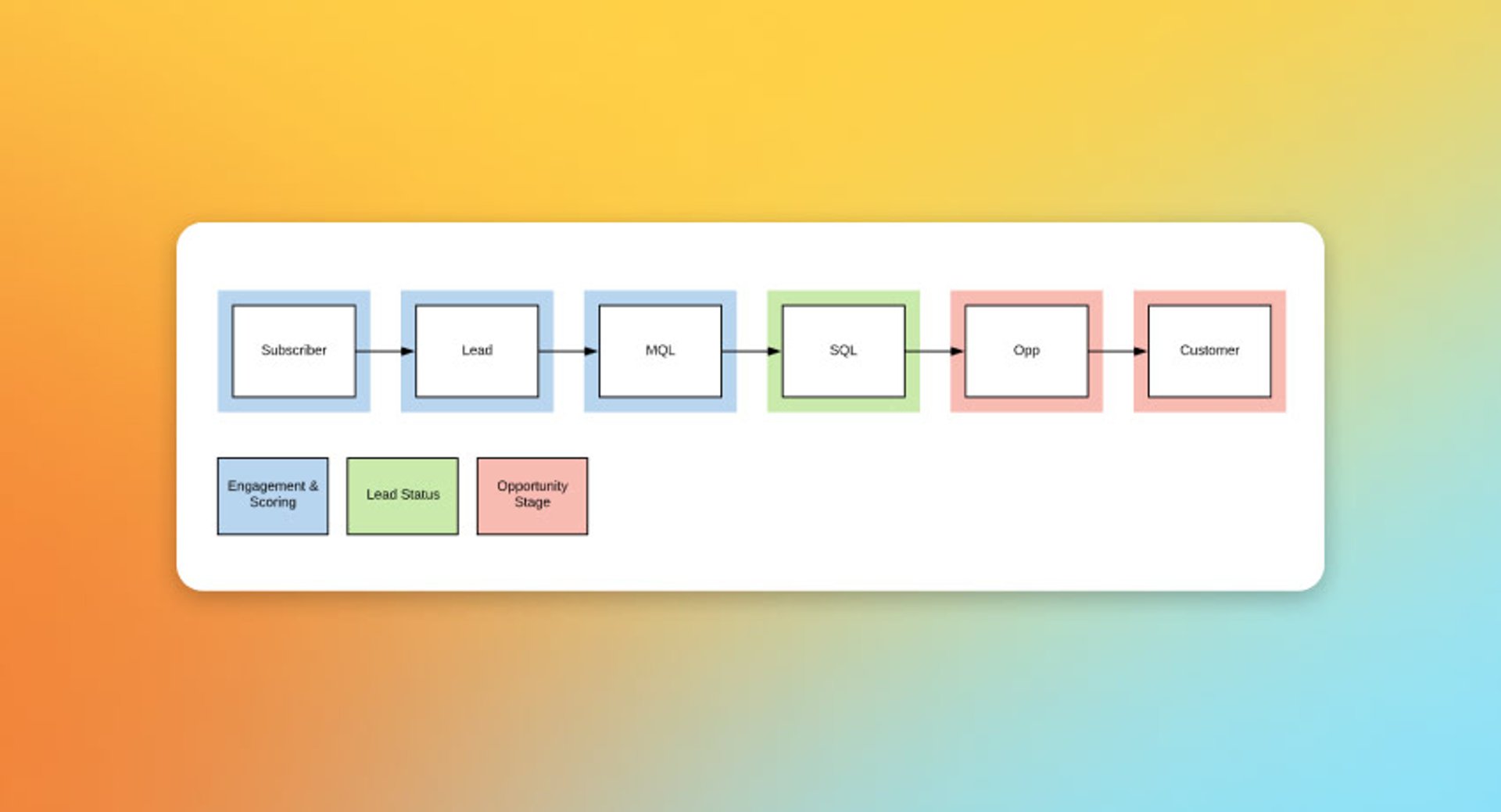
There are three main mechanisms for moving contacts through the lifecycle:
- Subscriber to MQL: use engagement scoring (see this post on MQL models)
- MQL to SQL: use lead status
- SQL to Opportunity: use the sales pipeline
One common point of confusion: many marketing ops teams mirror lead status across the full lifecycle, assigning "New" to subscribers and "Customer" to closed-won contacts. That's fine as a labelling convention. The real power of lead status is in managing contacts at the SQL stage, before a deal exists. It tells you who's being worked, who's stalled, and who needs to go back into nurture.
Customizing lifecycle stage and lead status
HubSpot doesn't let you modify the default lifecycle stage property or its values. You can create a custom property and manage your own stages through workflows, and that approach works, but it's worth exhausting the default setup first. HubSpot provides automatic stage progression (for example, advancing to Opportunity when a deal is created), timestamps for each stage, and out-of-the-box reporting, all without any additional configuration.
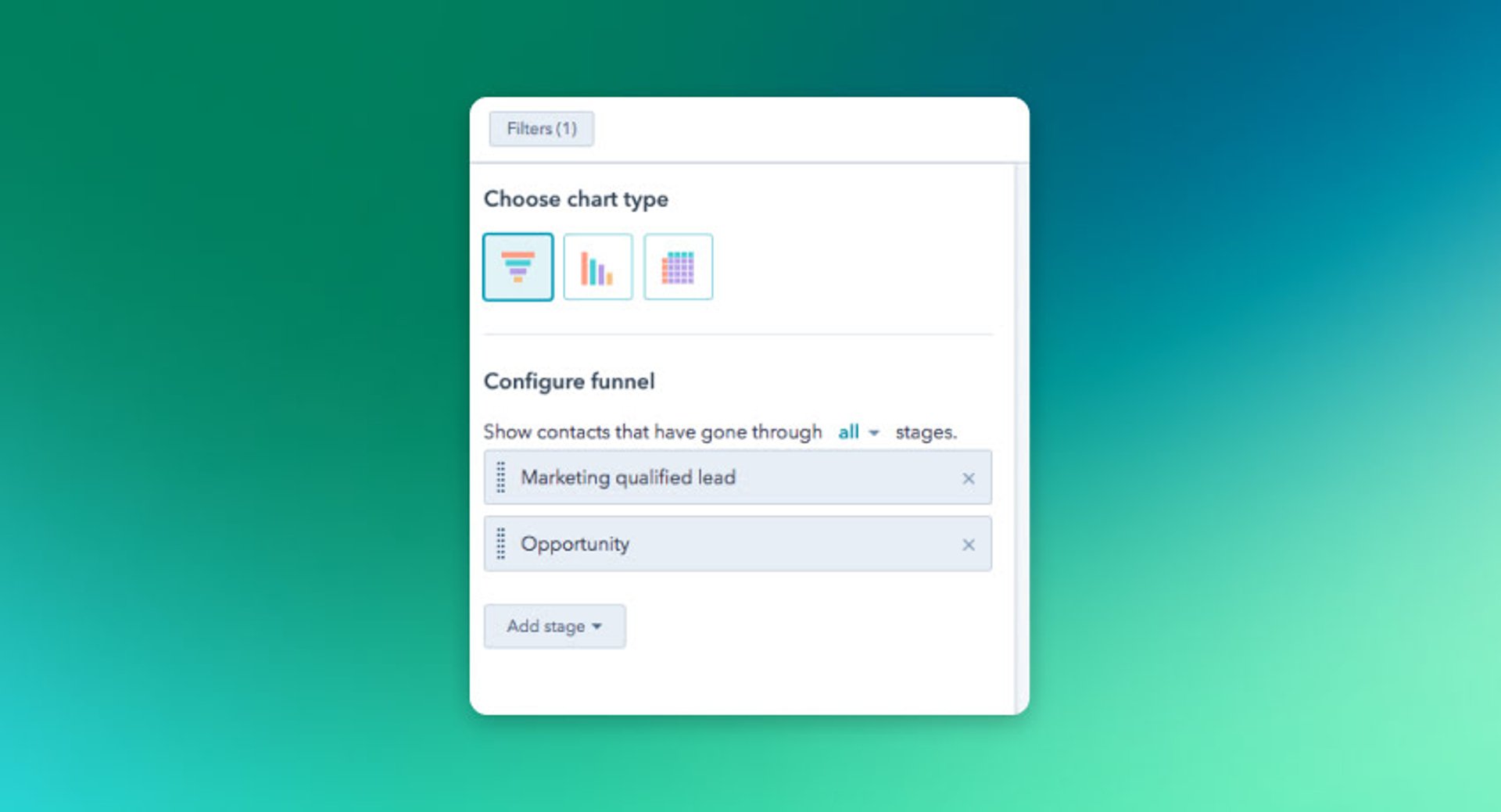
Lead status is more flexible. You can edit and add values to fit your sales process. Sometimes that's as simple as renaming "Attempting to Contact" to something that matches how your team talks, like "Engaging." A common and useful addition is a "Nurture" status, which lets sales send a contact back to marketing for further qualification rather than marking them "Unqualified" and moving on. That keeps your pipeline healthier over time.
The most common mistake with lead status customization is adding too many options. Sales teams are busy. When the picklist is long, people default to whatever status they recognize and ignore the rest, which breaks the workflows those statuses are supposed to trigger. Keep the list short, clear, and tied to a real next action.
Using lifecycle stages and lead status effectively
Both properties require team alignment to work. If sales and marketing don't agree on what "MQL" means, or when to set "Attempting to Contact," the data becomes noise and the workflows that depend on it stop being reliable.
Before you build any workflow, define each stage and status in plain language. Then ask: what happens next when this value is set? If there's no clear answer, the status probably doesn't need to exist. Every value should map to a real action, whether that's an automated enrolment, a task creation, or a routing decision.
When that alignment is in place, these two properties give you something genuinely useful: a shared, consistent picture of where every contact stands, without anyone having to chase it down or paste numbers into a spreadsheet to figure it out.
Published 2026-08-23
More in Marketing

Why every digital marketer needs to learn how to deploy marketing technology

17 KPIs Every Data-Driven Manager Needs to Lead Their Team

12 important sales enablement metrics you shouldn't miss

The beginner's guide to e-commerce KPIs

Nailing down B2B Sales KPIs that drive results like a boss

10 KPIs To Monitor Your Digital Marketing Performance
Most recent
- AUG 11Beyond simple sign-ups: how True Trials and Activation predict growth
- JUL 7Why business leaders miss important trends in their dashboards
- JUN 19The best chart for the job: Visualizing data for non-technical users
- JUN 95 tips to understand (and organize) your restaurant data
- MAY 26Think in Horizons, Not Seconds
- MAY 2010 Cloud BI Dashboard Tools for Small Businesses in 2026